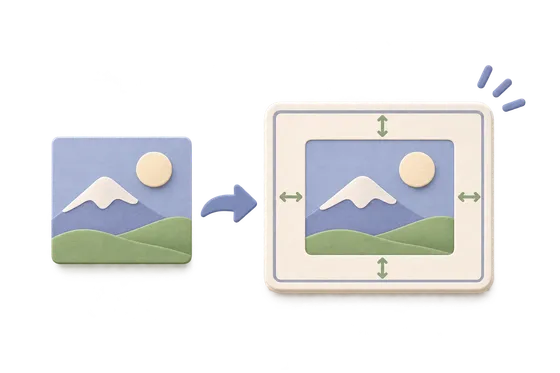
Frame, crop and annotate a screenshot with editable layers and local image exports.
Screenshot Studio
Give your screenshot a setting.
Drop a PNG, JPEG or WebP. You can also paste an image.
Local editing · original preserved · up to 20 MiBDrop a screenshot to start. Nothing is uploaded.
Save project includes the original image. No automatic document storage.Support and limits
One screenshot, up to 20 MiB / 16 million pixels. Still PNG, JPEG and WebP only. Canvas up to 4096 pixels; export up to 16 million pixels. Browser worker canvas support is required. No secure redaction, cloud capture or automatic saving. Text uses a system font in the export. Physical phones and real Safari remain unverified.
JPEG fills transparent backgrounds white. Project files contain the original image and annotations; share them only when intended. This tab’s edits disappear when you leave unless you save a project.
What happens to your data
Screenshot Studio runs inside this browser tab, and the page's code comes from this site. There is no application server to receive your data, and the site's security policy limits connections to this site.
Good to know
- One still PNG/JPEG/WebP up to 20 MiB / 16 million pixels. Worker canvas required. Projects contain the original; no automatic saving or secure redaction.
- Desktop limits are provisional. Physical mobile and Safari verification remains open.